
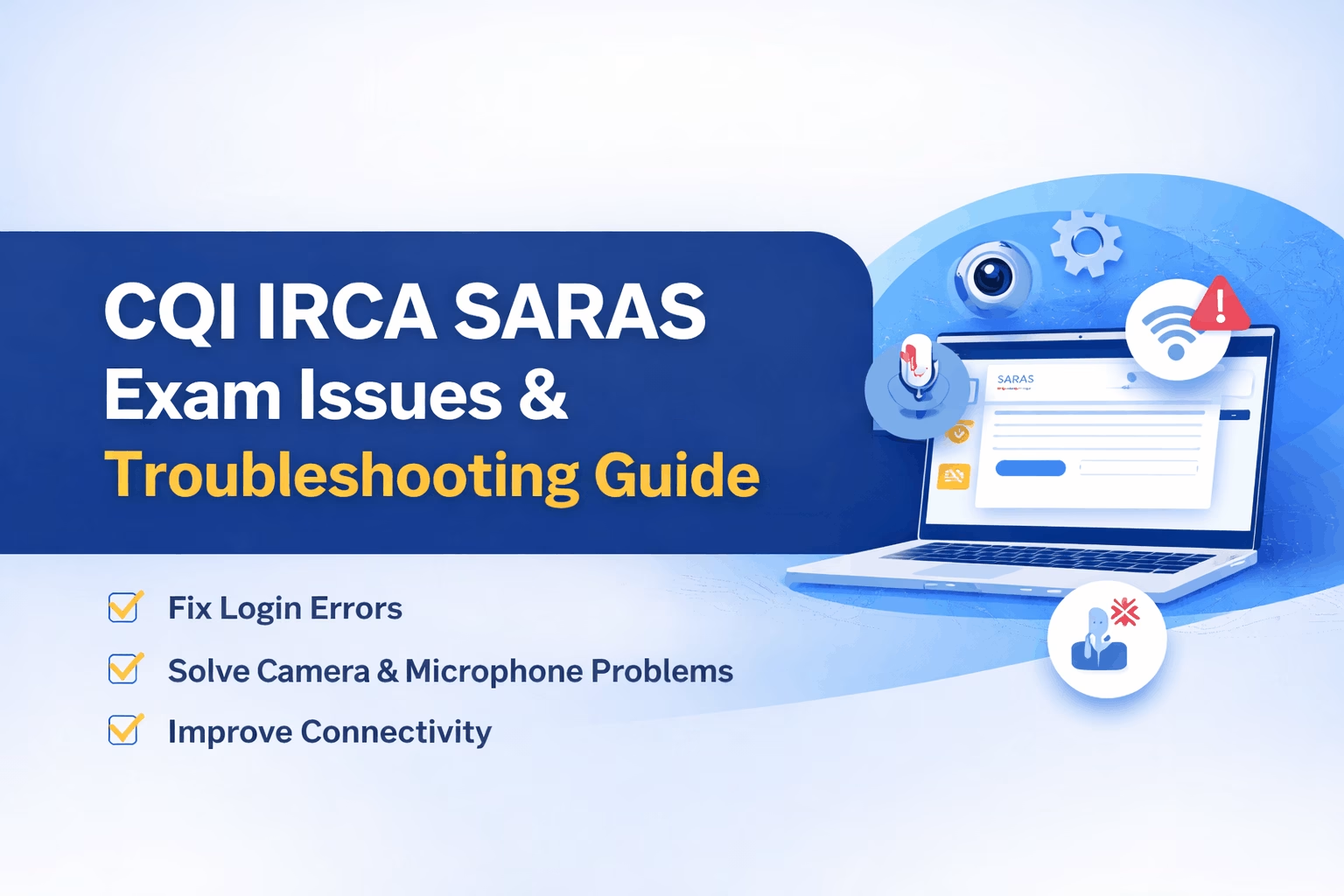
CQI IRCA SARAS Online Exam Issues and Fix Guide
Many professionals appearing for CQI IRCA online exams experience technical challenges while using the SARAS assessment platform.
These issues usually involve login errors, camera access problems, microphone permissions, screen sharing difficulties, or unstable internet connections.
Most of these problems can be resolved quickly with the right setup.
This updated guide explains the most common SARAS exam issues, why they occur, and how to fix them smoothly so you can complete your CQI IRCA online exam without unnecessary stress.
What Is the SARAS Online Exam Platform?
SARAS is the remote proctored exam system used by CQI IRCA for conducting online assessments.
Before starting the exam, the system checks:
-
-
Browser compatibility (Chrome recommended)
-
Camera and microphone access
-
Internet speed and stability
-
Screen sharing permissions
-
System display settings
-
If any of these checks fail, the exam may not launch correctly.
Common SARAS Exam Issues and How to Fix Them
Camera Access Showing “False” or Not Working
This is one of the most frequent problems.
Possible causes:
-
-
Browser permission not allowed
-
Windows privacy settings blocking camera
-
Camera already in use by another app
-
How to fix:
Allow camera in Chrome
1. Click the lock icon next to the website address
2. Set Camera to Allow
3. Refresh the page
Check Windows camera settings
1. Go to Settings → Privacy & Security → Camera
2. Turn on camera access for apps and desktop programs
Close other applications
Shut down Zoom, Teams, Google Meet, Skype, or any software using the camera.
Microphone Showing “False” or No Audio Detected
Possible causes:
-
- Microphone permission is blocked in the browser
- Incorrect input device is selected
- Audio access is disabled in system settings
How to fix:
Allow microphone access in Chrome
1. Click the lock icon near the exam website URL
2. Set Microphone to Allow
3. Refresh the page
Check Windows microphone permissions
Go to Settings → Privacy & Security → Microphone and enable microphone access.
Select the built-in microphone
Make sure your computer’s built-in microphone is selected as the input device in your system sound settings.
(Do not use wired or Bluetooth headsets during the exam.)
Screen Sharing Not Working Properly
Screen sharing is mandatory for the SARAS exam.
Fix steps:
1. When prompted, select Entire Screen
2. Click Share
3. Make sure popups are allowed in Chrome
If it still fails, refresh the page and try again.
Popup Blocker Preventing Exam Functions
The SARAS system uses popups for important exam features.
How to enable popups:
-
-
Go to Chrome Settings → Privacy & Security → Site Settings → Popups
-
Set to Allowed
-
Or allow popups directly from the address bar icon.
Internet Speed Test Failing
Stable internet is essential for online proctored exams.
Tips to improve connection:
- Use stable network like WIFI or LAN
- Avoid mobile hotspots
- Close background downloads and apps
- Keep only the exam window open
Restart your router if needed.
Browser Compatibility Problems
Recommended browser:
Google Chrome (latest version)
Avoid:
-
-
Old browser versions
-
Unsupported browsers
-
Always update Chrome before exam day.
Hardware Not Detected (Camera or Microphone)
If your camera or microphone is not detected:
-
- Restart your computer
- Reconnect your external webcam (if used)
- Try a different USB port
- Test devices in Windows camera and sound settings
⚠️ Headsets and virtual audio devices should remain disconnected during the exam.
Internet Disconnect During the Exam
If your connection drops briefly:
-
-
Reconnect immediately
-
The system usually resumes your session
-
If unable to rejoin, contact SARAS support through the help option.
Recommended System Display Settings
For smooth performance:
-
-
Screen resolution: 1366 x 768 or higher
-
Display scaling: 100 percent (recommended)
-
Change this in Settings → Display → Scale and layout.
SARAS Exam Audio and Device Requirements (Important Reminder)
Before starting your CQI IRCA SARAS online exam, candidates must follow strict audio and device rules to maintain exam integrity.
❌ Devices Not Allowed During the Exam
During the exam, you are not permitted to use:
- Mobile phones
- In-ear, open-ear, or over-ear headphones
- Bluetooth or wired headsets
(All headphones must be fully disconnected)
Use Official CQI IRCA SARAS Help Videos
CQI IRCA provides official video tutorials covering:
-
-
Logging into SARAS
-
Resetting passwords
-
Camera troubleshooting
-
Microphone setup
-
Screen sharing configuration
-
System permissions
-
Watching these before exam day can prevent most technical issues.
CQI IRCA Official Email Support
If none of the above troubleshooting steps resolve your issue, candidates can submit an online help request form through the SARAS platform.
Please note that CQI IRCA’s official email support is available between 09:00 and 17:00 (UK working hours), Monday to Friday only.
Final Checklist Before Your Exam
✔ Complete system check at least one day in advance
✔ Use updated Chrome browser
✔ Test camera and microphone
✔ Ensure stable internet connection
✔ Close all background programs
Conclusion
Most CQI IRCA SARAS online exam issues are caused by permission settings, outdated browsers, or hardware conflicts.
Once camera access, microphone access, screen sharing, and internet stability are properly configured, the exam experience becomes smooth and stress-free.
Following this updated guide and reviewing official SARAS support videos will help you attend your CQI IRCA online exam confidently.
Quick answer:
Login problems usually happen due to incorrect credentials, formatting issues from copied text, expired exam windows, or missing registration emails.
How to resolve:
-
-
Make sure you received two separate emails (practice portal + exam portal)
-
Check spam or junk folders
-
If using a company email, ask IT support to check for blocked messages
-
Type credentials manually instead of copy-pasting
-
If the exam window has expired, contact your training provider to request assistance.
Quick answer:
This usually happens when browser permissions are blocked or another application is using the camera.
Fix steps:
1. Click the lock icon near the exam website URL
2. Allow access for camera, microphone, and popups
3. Refresh the page
Also:
-
-
Close Zoom, Teams, antivirus camera tools, or virtual camera apps
-
Disconnect and reconnect external webcams
-
Avoid hybrid laptops or virtual cameras, as these may not be permitted.
Quick answer:
Microphone access is often disabled in browser or system privacy settings.
Fix steps:
-
- Allow microphone access in Chrome site permissions
- Turn on microphone permissions in Windows privacy settings
- Select the built-in microphone as the input device in sound settings
- Test your audio before starting the exam
Quick answer:
You must share your entire screen that displays the exam player.
Correct method:
1. Choose “Entire Screen” when prompted
2. Select the screen showing the exam window
3. Click Share
Do not select a single tab or application window.
Quick answer:
Your answers are usually saved automatically.
What to do:
-
-
Reconnect to the internet as soon as possible
-
Log back into SARAS
-
The exam typically resumes from your last question
-
Please note: there is a limit to how many times you can restart the exam for security reasons.
Quick answer:
This is caused by incorrect display resolution or screen scaling.
Recommended settings:
-
-
Resolution: 1366 x 768 or higher
-
Display scaling: 100 percent
-
Adjust these in your system display settings under “Scale and Layout”.
If the troubleshooting steps above do not resolve your problem, you can submit an online help request form through the SARAS platform.
Please note that CQI IRCA official email support operates between:
09:00 and 17:00 (UK working hours), Monday to Friday only
Responses outside these hours may take longer.
Results are typically reviewed and released to your training provider within 10 UK working days after the exam.
If results are not received within 14 UK working days, contact your training provider.
Yes.
You can request one resit attempt within 12 months of your initial exam by contacting your training provider.
Only one resit is permitted.




Leave a Reply
Your email is safe with us.